Photo-free size guidance for babies & kids
Updated 3 October 2026. This captioned screen overview shows the actual assistant with labelled demonstration charts and sample measurements. It is a sequence of interface captures, not a recording of a real customer or evidence of return reduction.
Open video directly · English captions
Merchant setup: a size guide does not require image generation
- Install and open Tryveliq from Shopify Apps. No separate merchant login is required. Choose and approve a plan on Shopify’s hosted page. Eligible monthly/yearly subscriptions have a 3-day trial; Shopify shows the remaining trial and exact charge. No approval means no paid access.
- The catalog sync starts automatically after approval. Open Products → Manage on a synced Shopify product. Choose baby or child and the correct product category.
- Record the brand chart source and verification date. Enter verified BODY ranges in centimeters. Do not derive them from variant size names, garment widths or age guesses. Hats need head ranges; footwear needs foot ranges. Confirm the source and save.
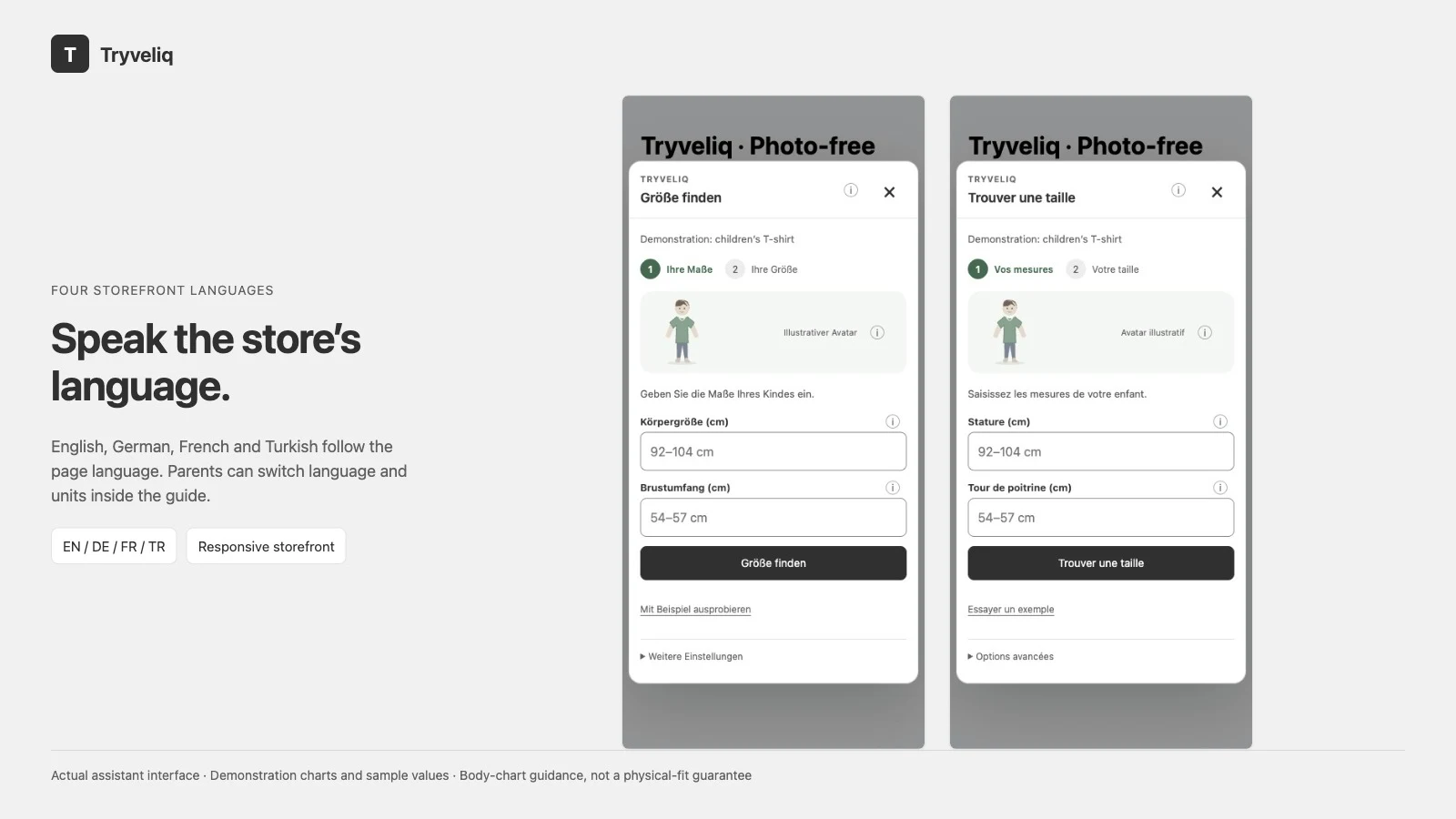
- In the theme editor, select the product template and add Apps → Tryveliq fitting room once. Keep “Show photo-free guides and approved previews” enabled. Save and test the product page. Optional button labels are per language; the guide follows EN/DE/FR/TR page language with English fallback: English, German, French and Turkish.
- Use Dashboard → Photo-free fit insights to find missing guides. Reuse only on explicitly selected compatible products. Optional 30-day event counts require merchant and shopper consent and are not sales, unique shoppers or avoided returns.
Parent workflow
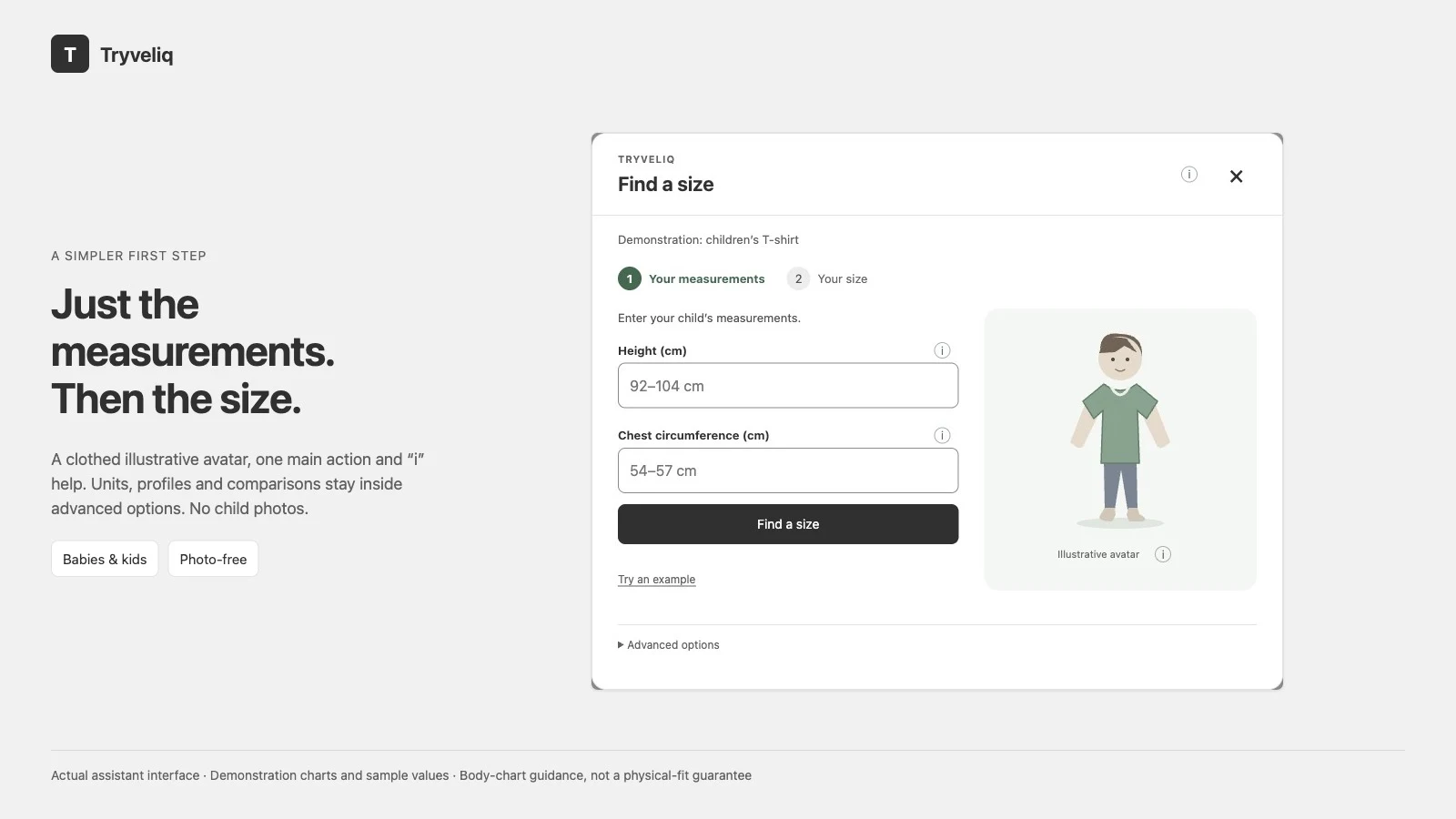
- Open the size guide on the product page. No child photo, camera or shopper account is needed.
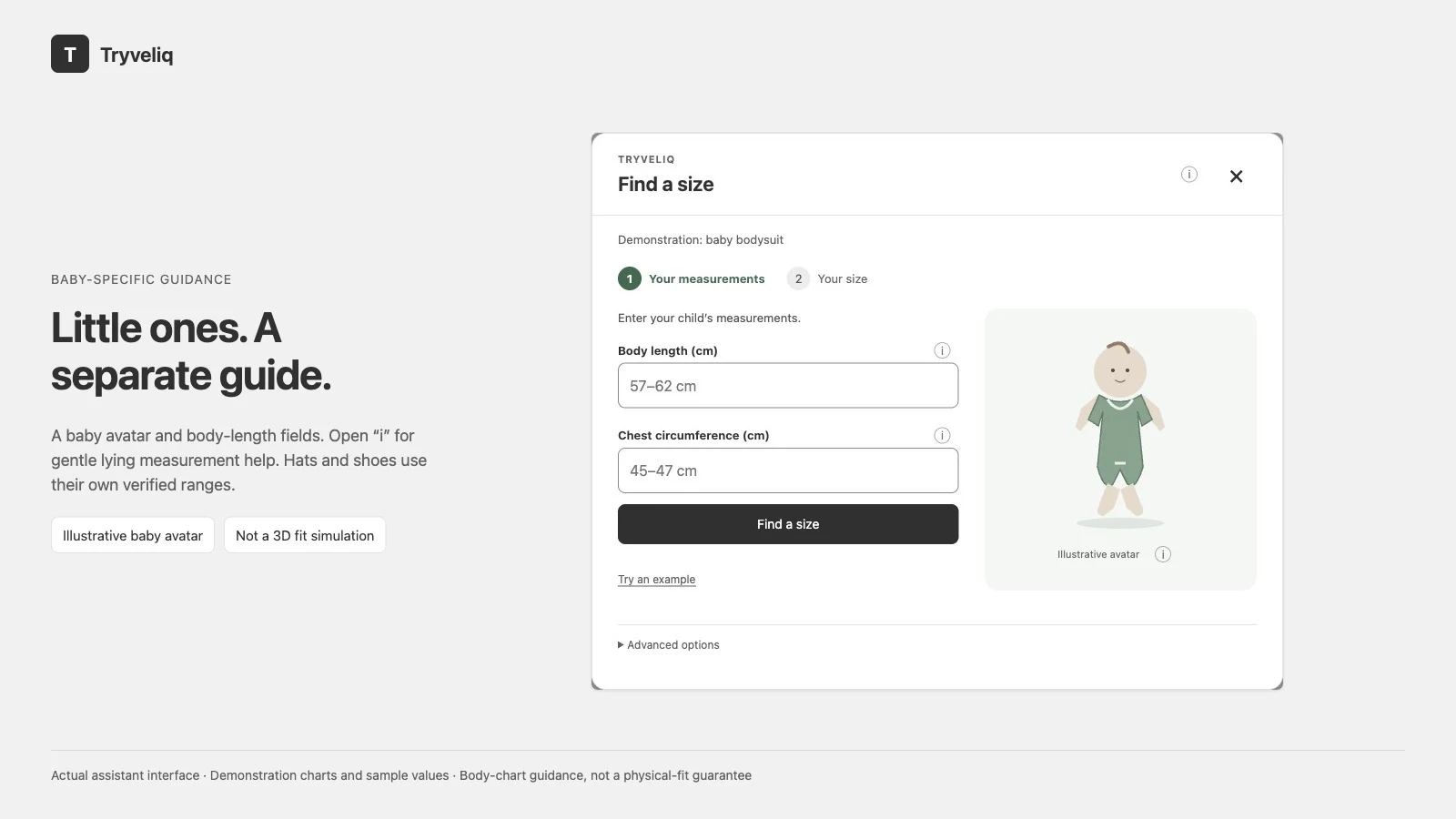
- Enter current body measurements, or try the clearly marked example. Use the “i” beside a field for measuring help. The clothed baby or child illustration can be replaced by “Open 3D avatar”: a real measurement-responsive model with rotation and zoom. Missing proportions and clothing are generic, not a product-specific garment simulation.
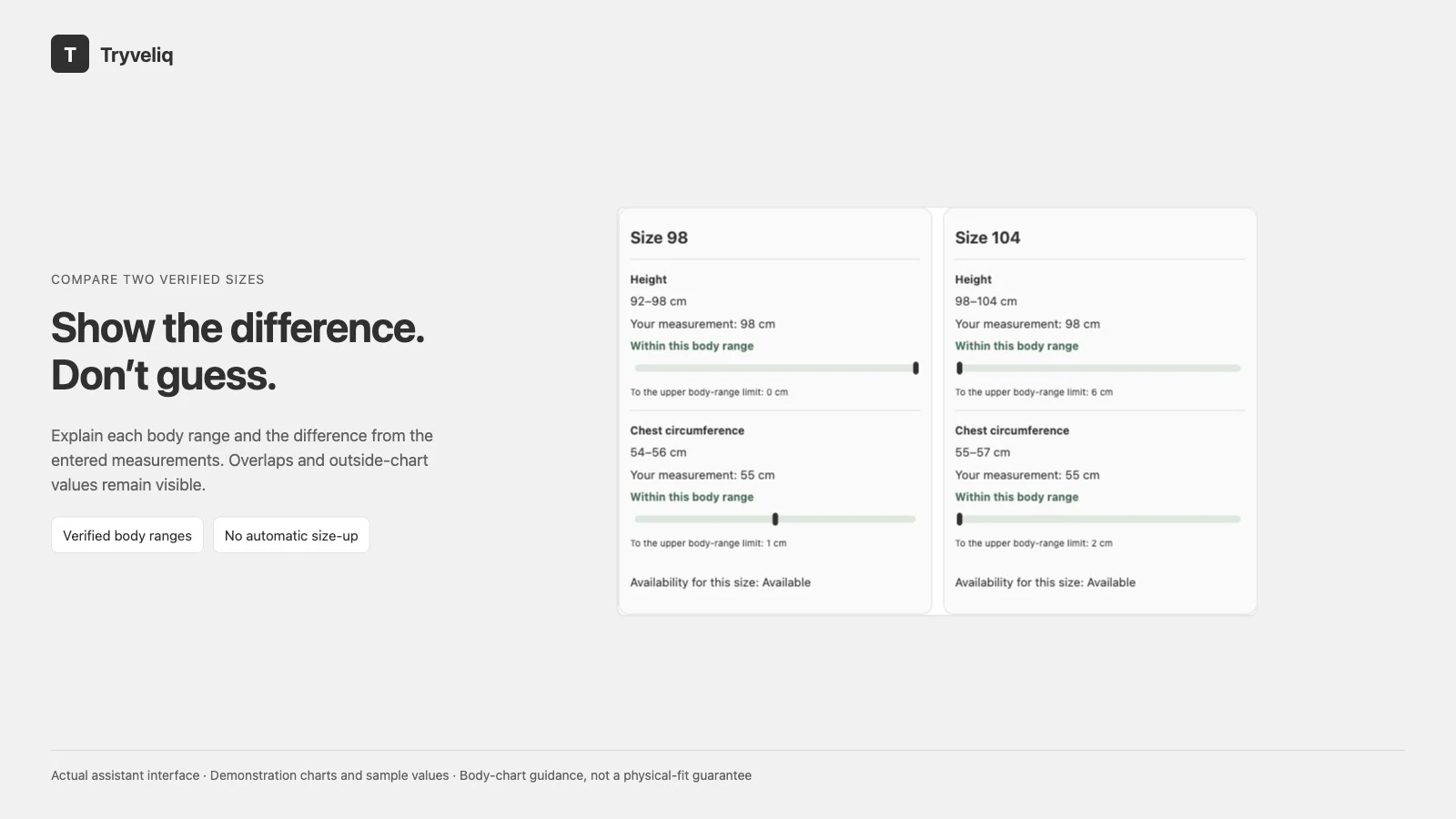
- Complete the required fields and choose “Find a size” for the separate result step. Missing, invalid, outside-chart and overlapping values show an explanation. “Edit measurements” returns to entry; example values are cleared before real entry. Units, language, profiles and two-size comparison are inside the closed “Advanced options”.
- Check live availability. Sold-out sizes have no purchase link, and no substitute is silently selected. The guide never adds items to the cart or starts checkout automatically.
- An adult or guardian may opt in to three anonymous temporary profile slots in this browser tab for up to 24 hours. Example values cannot be saved. Delete-all removes the slots; measurements are not uploaded to our server. Closing clears the current form.
This is chart-based body measurement guidance, not garment ease, a growth prediction, fabric simulation or a guaranteed fit. Growth/diaper allowance may already be built into a brand’s sizing; the assistant does not automatically go up a size. A styling illustration is optional, static and reviewed by the merchant. It does not change with body measurements.
Optional styling studio and billing reference
Historical September styling-studio recording and transcript demonstrate the optional image workflow. Its adult samples, menu labels and pre-trial pricing predate the current child-focused guide; use the current setup above and Shopify’s live approval screen.
Billing reinstall verification reference · Complete setup and API documentation